Eligibility-inquiry editing guide
How to Edit an EDI 270 File
Change mapped inquiry data for downstream analysis or export while preserving subscriber, dependent, provider, trace, and service-type context.
To edit an EDI 270 file, convert the 005010X279A1 eligibility inquiry with Smart mapping, open the full Data Editor, locate the correct subscriber or dependent inquiry row, and change an unlocked converted field. Verify the change with Undo, Redo, Review changes, or Reset edits, then export the revised representation as Excel, CSV, JSON, or XML. This workflow does not rewrite the uploaded X12 source, send a new eligibility inquiry, alter the payer’s records, or produce a 271 eligibility response.
Current mapping boundary: exact ST03=005010X279A1, or blank ST03 plus exact GS08=005010X279A1, uses the unified 227-field Smart Mapping schema; near-matches are Raw-only and there is no separate Key schema. One EQ creates one row, while EQ01 repetitions remain on that row. Smart de-identification protects rows, validation, summary, and downloads; Raw segments preserve original identified values and are not de-identified.
Primary NM1 identity follows entity code plus the HL02-resolved hierarchy. The first member DTP*291/DTP*102, REF*1L/REF*SY, and PRV provide convenience values; later occurrences remain in Other Dates, Other References, and Other Provider Data. D8/RD8 stays raw, inquiry DTP/REF stays EQ-scoped, and PRV03 is taxonomy only when PRV02 is PXC.
What editing a 270 does—and does not do
An EDI 270 Eligibility, Coverage or Benefit Inquiry asks a health plan or information source for eligibility or benefit information. The 005010X279A1 transaction can identify the information source, information receiver, subscriber, and—when applicable—a dependent. EQ segments specify the service types being requested, while TRN, REF, DTP, NM1, DMG, and related segments contribute trace, identifier, date, demographic, and party context.
EDIFileConverter.com maps that hierarchy into labeled inquiry rows. The Data Editor changes the converted representation used for review and download. This is useful for annotating an internal dataset, normalizing a display value, correcting a downstream import value, or preparing a reviewed extract. It is not an EDI authoring or transmission tool. The original file remains intact, and a changed row cannot establish whether a patient is eligible or what benefits are available.
The related 271 is the response transaction. Editing a converted 270 does not create, simulate, or predict a 271. Any operational correction intended for submission should be made in the authoritative source system and regenerated under the applicable trading-partner rules.
Select the correct inquiry and hierarchy level
| Context | Fields to verify | Why it matters |
|---|---|---|
| Information source | Payer name and identifier in the source-level hierarchy. | The same receiver may send inquiries to different plans. |
| Information receiver | Provider name, identifier, taxonomy, address, and receiver hierarchy. | Receiver identity can affect routing and partner requirements. |
| Subscriber | Member identifier, name, date of birth, relationship, trace, and inquiry number. | Several inquiry rows can share one subscriber context. |
| Dependent | Dependent identity, relationship, parent subscriber, and patient type. | Do not overwrite subscriber data when the EQ request belongs to a dependent. |
| Service request | EQ service-type codes, procedure composite, DTP inquiry date, and occurrence number. | One patient can have several distinct requested benefit categories. |
Search for stable identifiers such as the eligibility trace number, member identifier, or inquiry reference. Then verify Inquiry Level, Patient Type, service-type fields, and the source hierarchy before editing. Protected workspace columns remain locked; unlocked columns are part of the converted output.
Important: Preserve leading zeros in member, trace, and reference identifiers. If a source value must change for transmission, correct the generating system and rebuild the X12 controls and counts rather than treating the edited spreadsheet-like result as a replacement EDI file.
Original and edited converted inquiry values
The screenshot fixture is synthetic and contains fictional names, identifiers, addresses, and dates. Its transaction header includes this reference:
ST*270*000000001*005010X279A1~
BHT*0022*13*REF000001*20260726*1030~
HL*1**20*1~
NM1*PR*2*SYNTHETIC HEALTH PLAN*****PI*PAYER001~
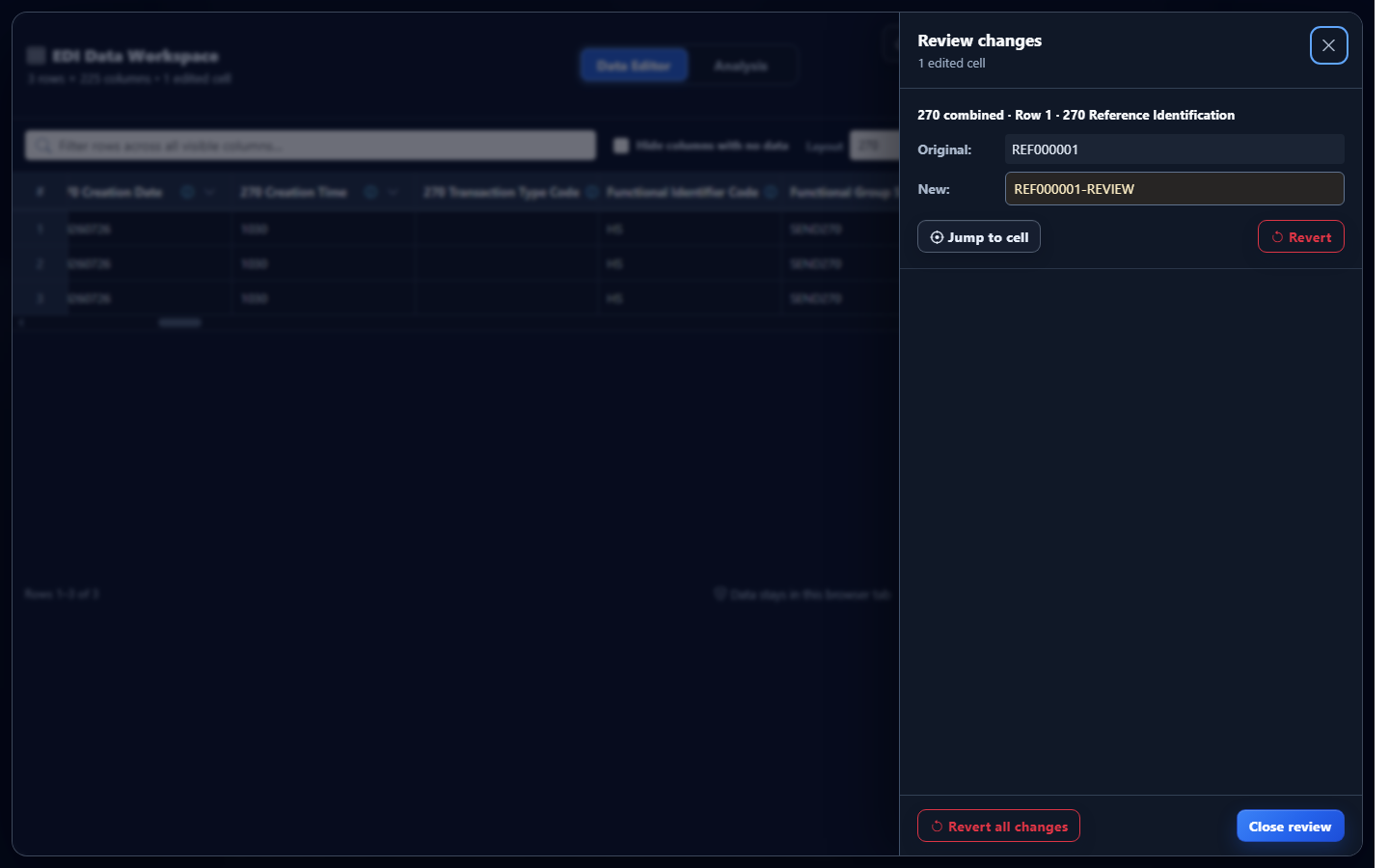
BHT03 contains the transaction’s reference identification. The mapped row labels it for readable review. In the controlled editing demonstration, that converted value changes as follows:
| Field context | Original converted value | Edited export value |
|---|---|---|
| 270 reference identification | REF000001 | REF000001-REVIEW |
The suffix is an intentionally obvious analyst marker, not a transmitted X12 value. It demonstrates the editor while preventing confusion with source truth. The uploaded BHT segment remains BHT*0022*13*REF000001....
Edit converted EDI 270 data in the application
- Open the EDI converter and Data Editor. Add an authorized inquiry using Browse files or Drag & drop EDI files. Processing occurs in the browser tab without application-server upload.
- Keep Smart mapping (per file) selected. Confirm the application identifies transaction 270 and implementation 005010X279A1.
- Select Convert & Preview. Verify the transaction reference, inquiry level, patient type, member and provider identifiers, date, and requested service types in Converted results.
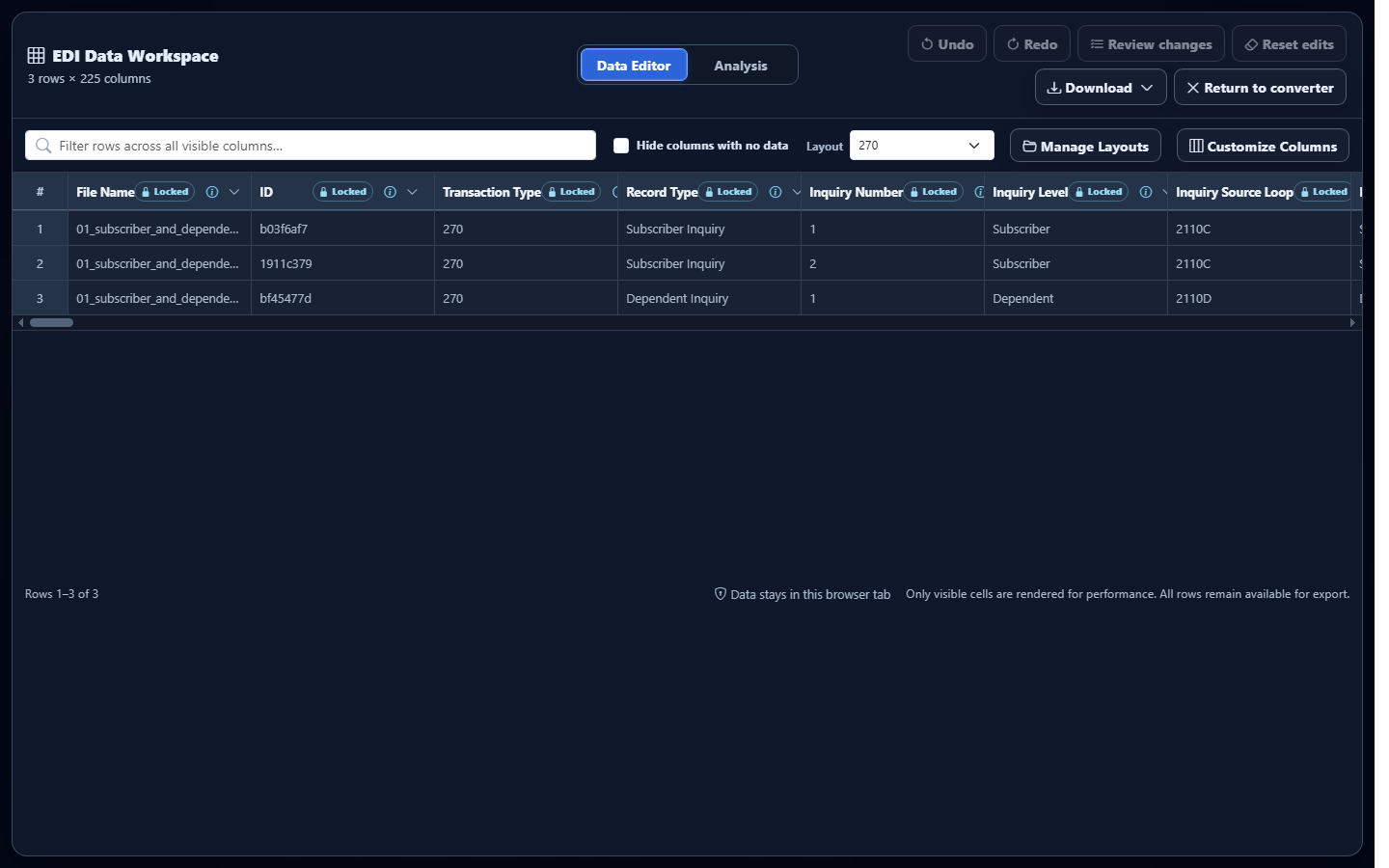
- Select Open full editor. The EDI Data Workspace opens on Data Editor with row and column counts, layout controls, and protected context columns.
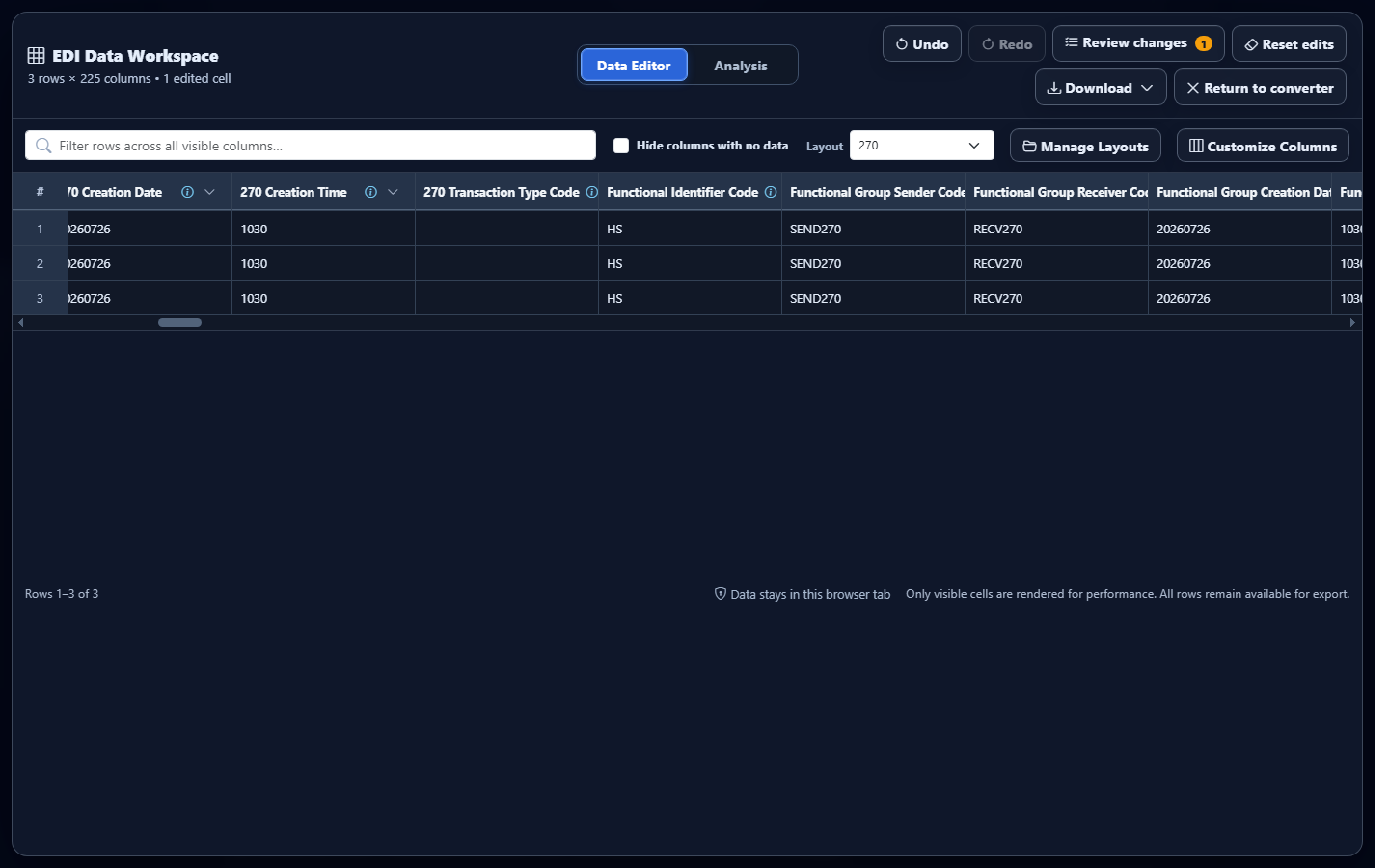
- Find the intended row. Use Filter rows across all visible columns, column menus, or Layout. Hide columns with no data can simplify sparse output, but keep the identifiers needed to establish ownership.
- Edit an unlocked cell. Enter the reviewed value and press Enter or move focus away. The workspace marks the edited cell and updates the edited-cell count.
Review, revert, and export the change
Select Review changes before downloading. The panel identifies the mapped output, row, field, original value, and new value. Use Undo and Redo for recent edits. Use the per-change Revert control, Revert all changes, or Reset edits according to the scope you intend to discard.
Open Download and select Excel, CSV, JSON, or XML. Excel suits a reviewed workbook, CSV supports flat imports, JSON supplies explicit field names for application workflows, and XML supplies structured elements for integration workflows. Each includes committed converted-data edits. Retain inquiry number, hierarchy level, patient type, trace, member, provider, service type, and date fields when a downstream consumer must distinguish repeated requests.
Common EDI 270 editing mistakes
Editing the wrong patient occurrence
What you see: similar subscriber and dependent rows. Why it matters: an EQ request belongs to a specific hierarchy node. Review: Inquiry Level, Patient Type, member identifier, and relationship. Correction: revert the wrong edit and locate the intended row through stable identifiers.
Removing leading zeros from identifiers
What you see: spreadsheet-style numeric coercion. Why it matters: identifiers are text and leading zeros may be significant. Review: original mapped value and export settings. Correction: preserve text formatting and compare the reviewed download.
Changing service types without their occurrence context
What you see: a revised EQ-derived value detached from related procedure or date fields. Why it matters: one patient can have multiple requested categories. Review: inquiry number, service-type list, procedure composite, and DTP qualifier. Correction: keep associated fields together in the export.
Assuming an edit updates eligibility
What you see: a cleaned dataset but no response from a payer. Why it matters: eligibility comes from a 271 response, not from editing an inquiry. Correction: use the authorized submission and response workflow outside this converted-data editor.
Frequently asked questions
Does the Data Editor rewrite the original EDI 270?
No. It edits the converted representation used for review and download. The uploaded source remains unchanged.
Does editing a 270 determine eligibility?
No. Editing neither submits an inquiry nor produces a payer’s 271 eligibility response.
Which implementation is recognized?
The current smart mapper recognizes 005010X279A1.
Can edited data be downloaded?
Yes. The Data Editor offers Excel, CSV, JSON, and XML containing committed converted-data edits.
Can I undo a converted-data edit?
Yes. Use Undo, Redo, Review changes, Reset edits, or the available revert controls.