Convert a file and open the workspace
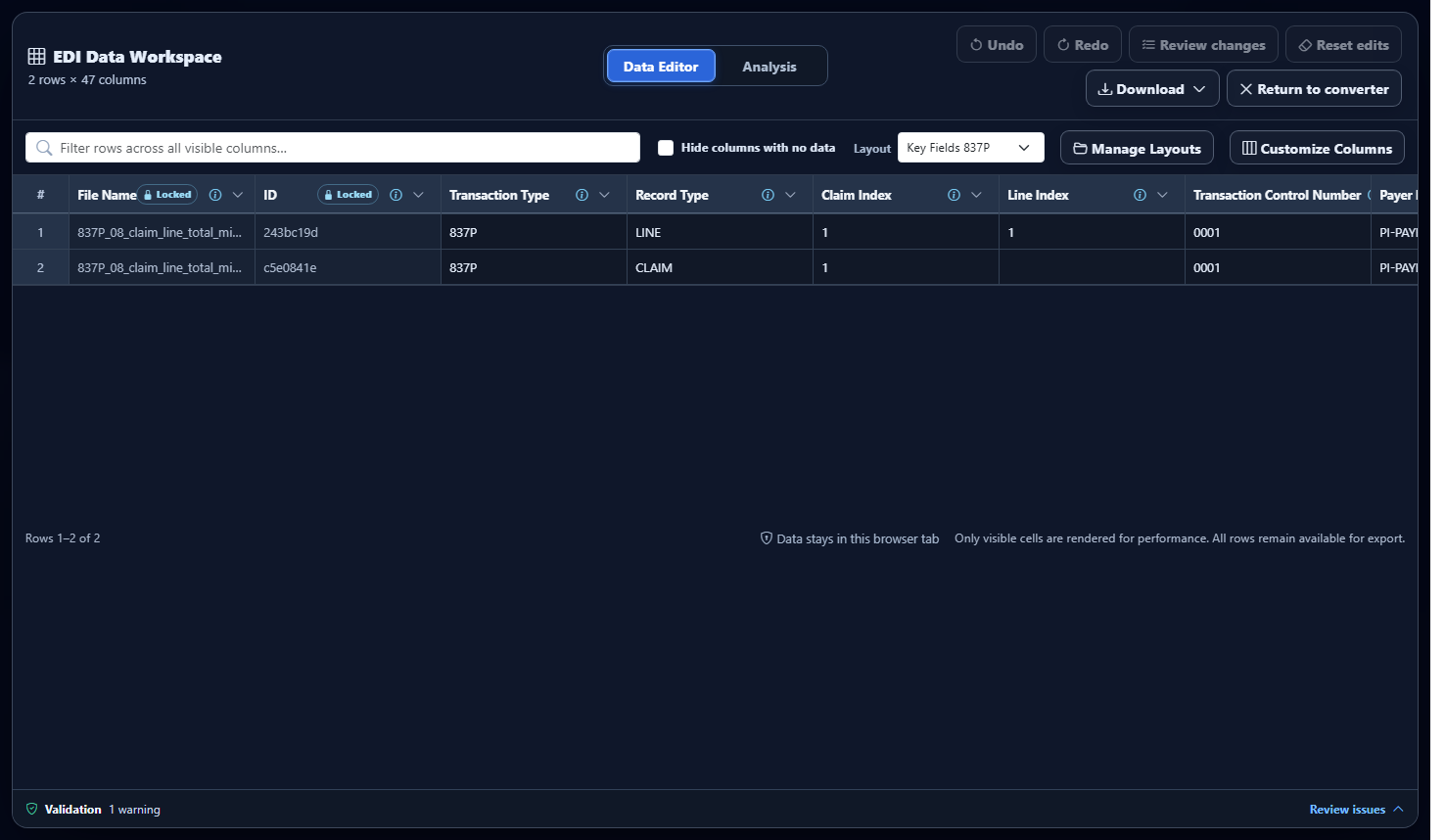
Validation runs as part of the converted-results workflow. Open the EDI Data Workspace and look for the Validation status bar at the bottom.
Understand what is being validated
The validator uses high-confidence structural, formatting, and consistency checks. It evaluates both the original parsed EDI segments and the converted output.
Envelope structure
Checks that ISA/IEA, GS/GE, and ST/SE are paired; control numbers match; and reported group, transaction, and segment counts agree with the parsed file.
Source EDI values
Applies transaction-specific structural, requiredness, dependency, date, number, selected-code, acknowledgment, adjustment, purchase-order, purchase-order-acknowledgment, invoice, ship-notice, warehouse-shipping-order, warehouse-shipping-advice, inventory-inquiry/advice, product-activity, and functional-acknowledgment checks across supported 835, 837P/I/D, 834, 270, 271, 277CA, 999, 850, 855, 810, 856, 940, 945, 997, 846, and 852 boundaries. Coverage varies by family.
Converted output
Checks unsafe export values, numeric and nonnegative fields, real and correctly ordered dates, unique generated row IDs, and complete 835 adjustment reason/amount pairs.
Edited output and headers
Rechecks applicable edited cells and confirms visible export headers are not blank or duplicated.
Read the Validation Results table
Each row explains one detected issue and where it was found.
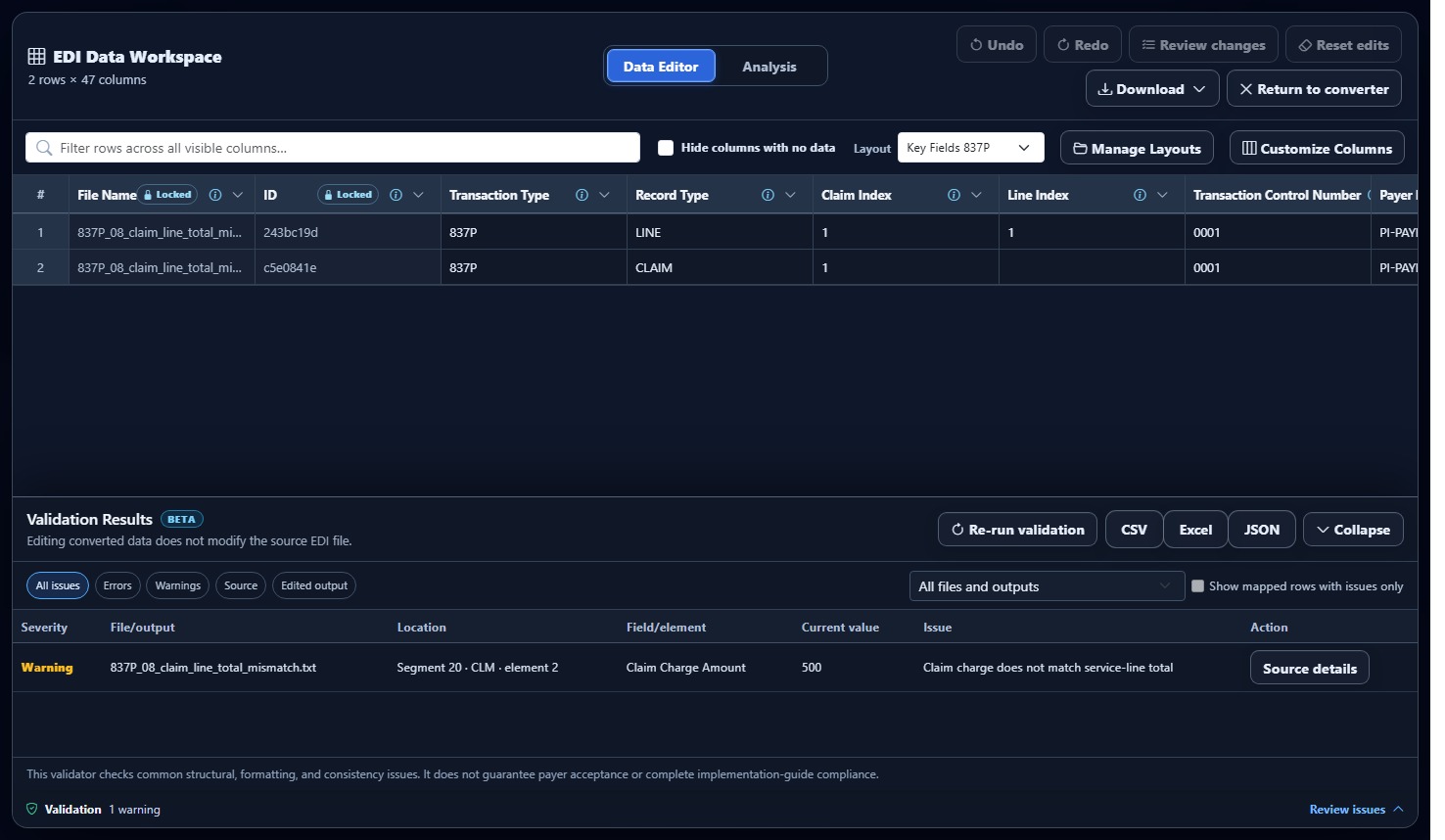
A high-confidence structural, requiredness, formatting, or output-consistency problem that should be reviewed before relying on the result.
A condition that deserves review but may be valid in context. Warnings are not automatically treated as file rejection.
Open an issue for more detail
Select an issue row or its action button to see the full explanation, expected value, internal rule ID, and suggested review action.
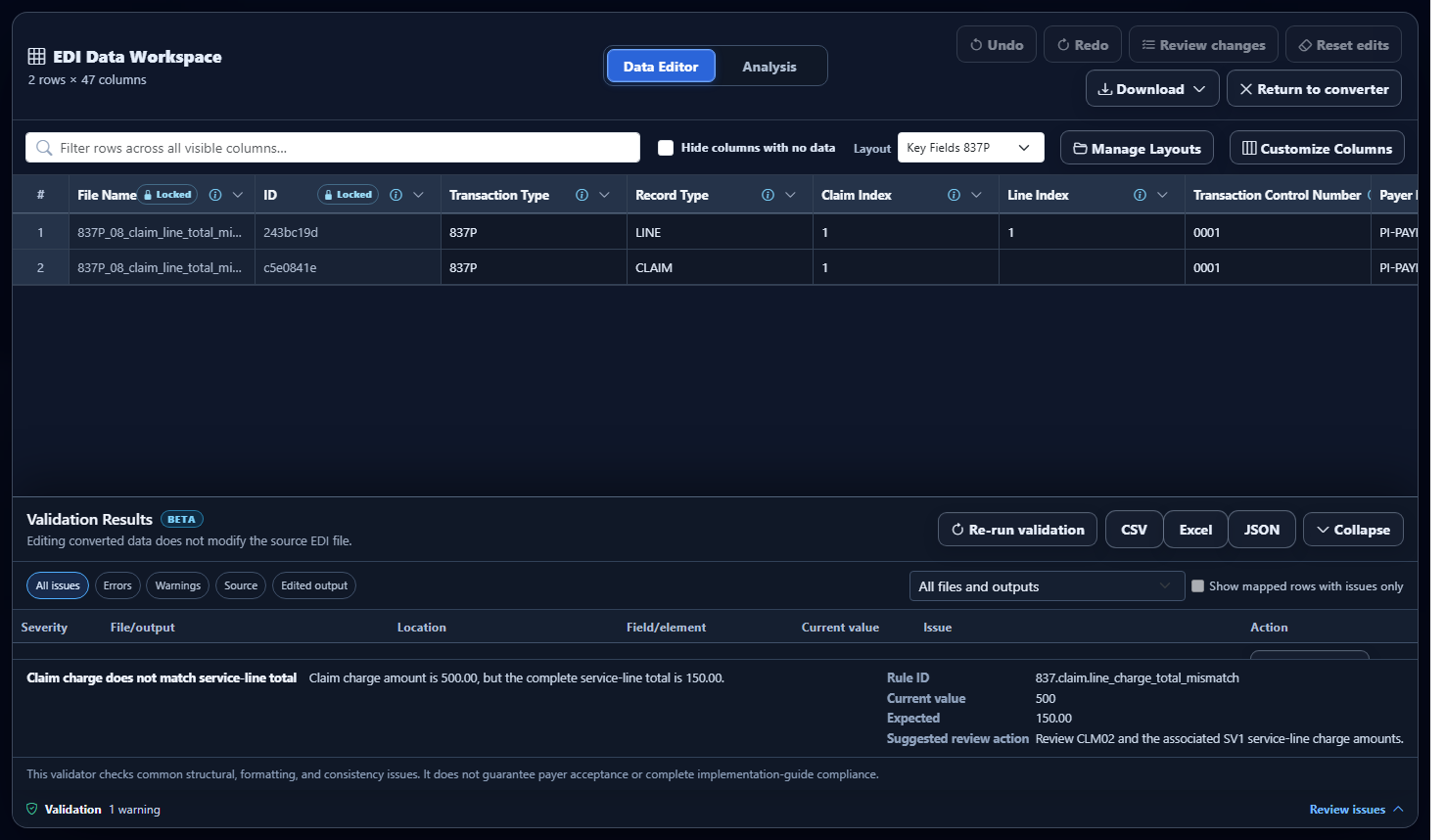
- Source details explains the originating EDI segment issue.
- Jump to issue navigates to a mapped converted row when one exists.
- The Rule ID helps identify the exact check in exported reports.
- The suggested action is guidance—not an automatic source-file correction.
Filter results and mapped rows
Use the controls above the issue table when a file produces many results.
Re-run validation or export a report
Use Re-run validation after reviewing changes or whenever you want to refresh source and converted-output checks. Export the current validation report as CSV, Excel, or JSON for review and recordkeeping. Validation-report XML export is not available.
- Reports include severity, rule ID, location, current and expected values, message, and suggested action.
- Exporting a report does not alter the EDI file or converted data.
- Cell edits remain separate from the source EDI file.
- Use the report filters on screen to investigate before exporting.
Know what “No issues found” means
No issues found means the file passed the validator’s currently supported high-confidence checks. It does not guarantee payer acceptance or complete compliance with every X12 implementation-guide or trading-partner rule.
Validate an EDI File
Convert the file, open the Data Workspace, and expand Validation.