Learn how to open the full workspace, edit converted values, find the rows you need, review every change, and download the finished result.
Your EDI data stays in the browser. Editing converted data changes the downloadable output only—it does not modify or regenerate the source EDI file.
1
Convert your files and open the editor
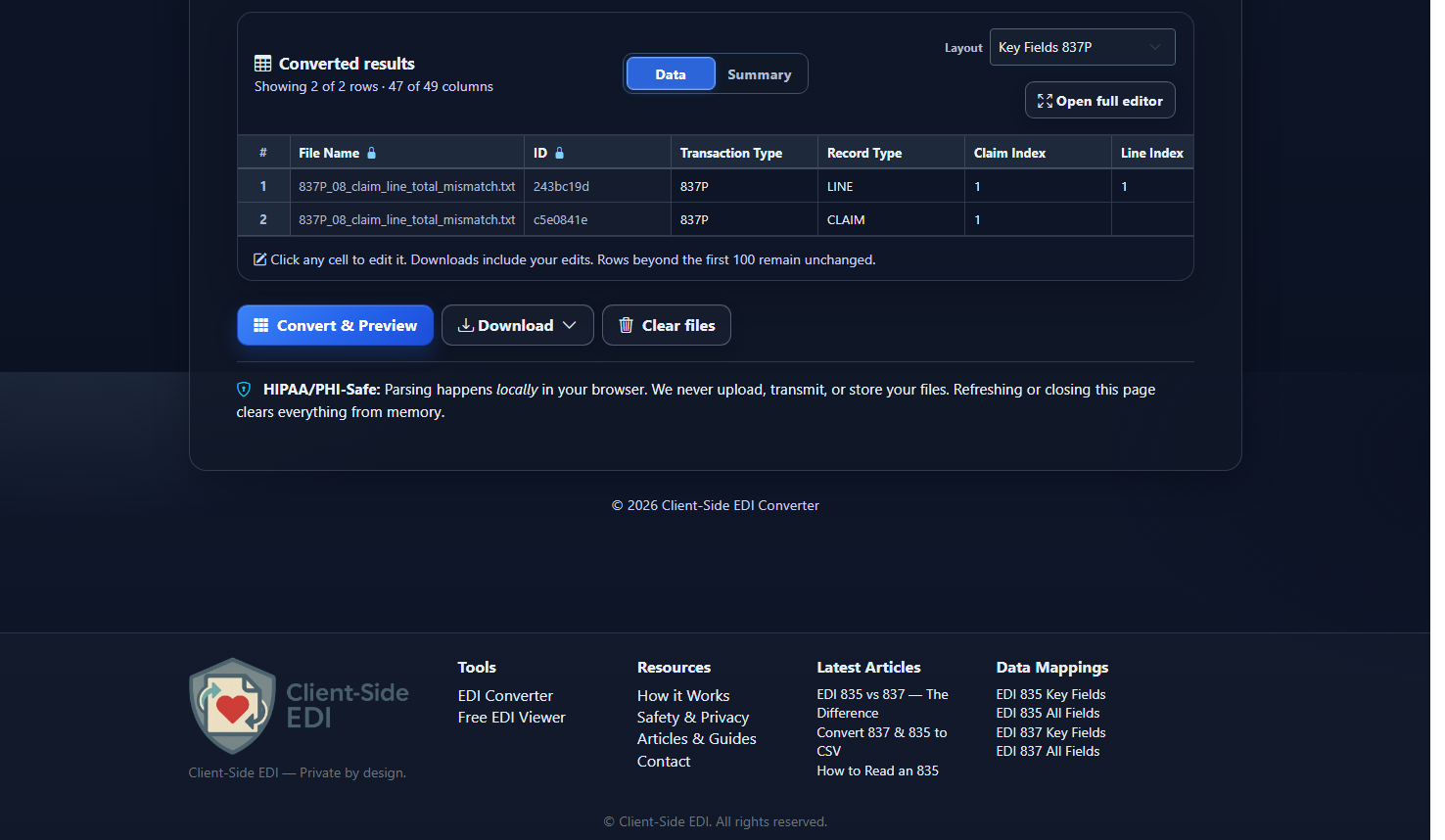
Add one or more 835 or 837 files, choose your conversion settings, and select Convert & Preview. When the results appear, choose Open full editor.
Select “Open full editor” from the Converted results card. Click any tutorial image to view it full size.
The smaller preview is useful for a quick check. The full editor is better for wide files, many rows, filtering, and reviewing changes.
2
Get familiar with the workspace
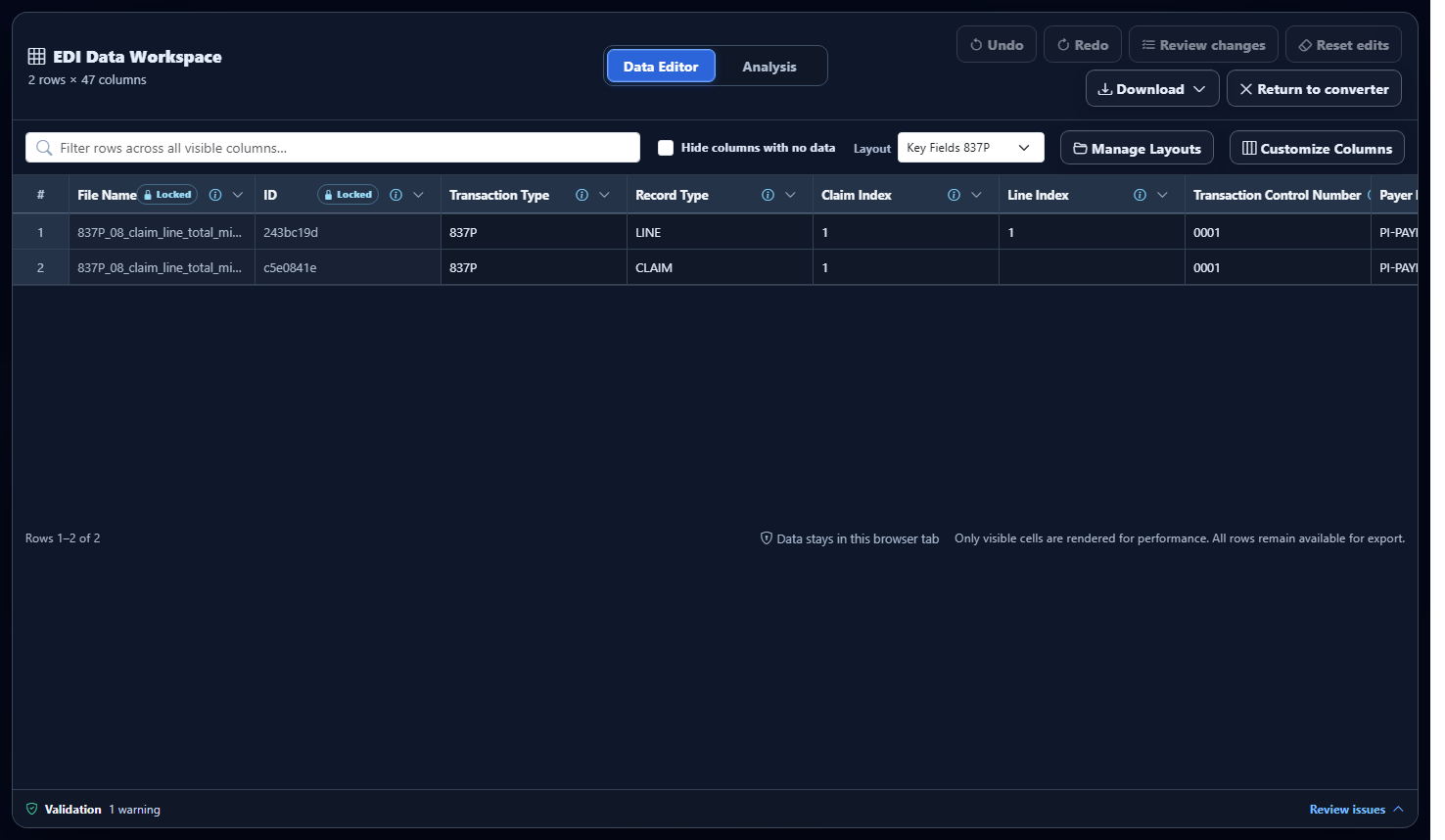
The workspace keeps the most-used controls above the spreadsheet-style grid.
The Data Editor view. The example uses a small, synthetic 837P test file.
SearchSearch values across the available columns to narrow the visible rows.
Hide columns with no dataTemporarily removes completely empty columns from the grid.
LayoutShows which built-in or saved column layout is active for this output.
Data Editor / AnalysisSwitch between individual converted rows and aggregate analysis.
3
Edit a converted value
Select an editable cell, type the corrected value, and press Enter or click outside the cell. Edited cells are highlighted so they are easy to recognize.
File Name and ID are protected system columns.
Undo and Redo become available after an edit.
Reset edits restores every changed cell.
Downloads include your current edited values.
Changing a converted cell does not rewrite the original EDI segment. Keep the source file when you need an audit trail.
4
Filter or sort a column
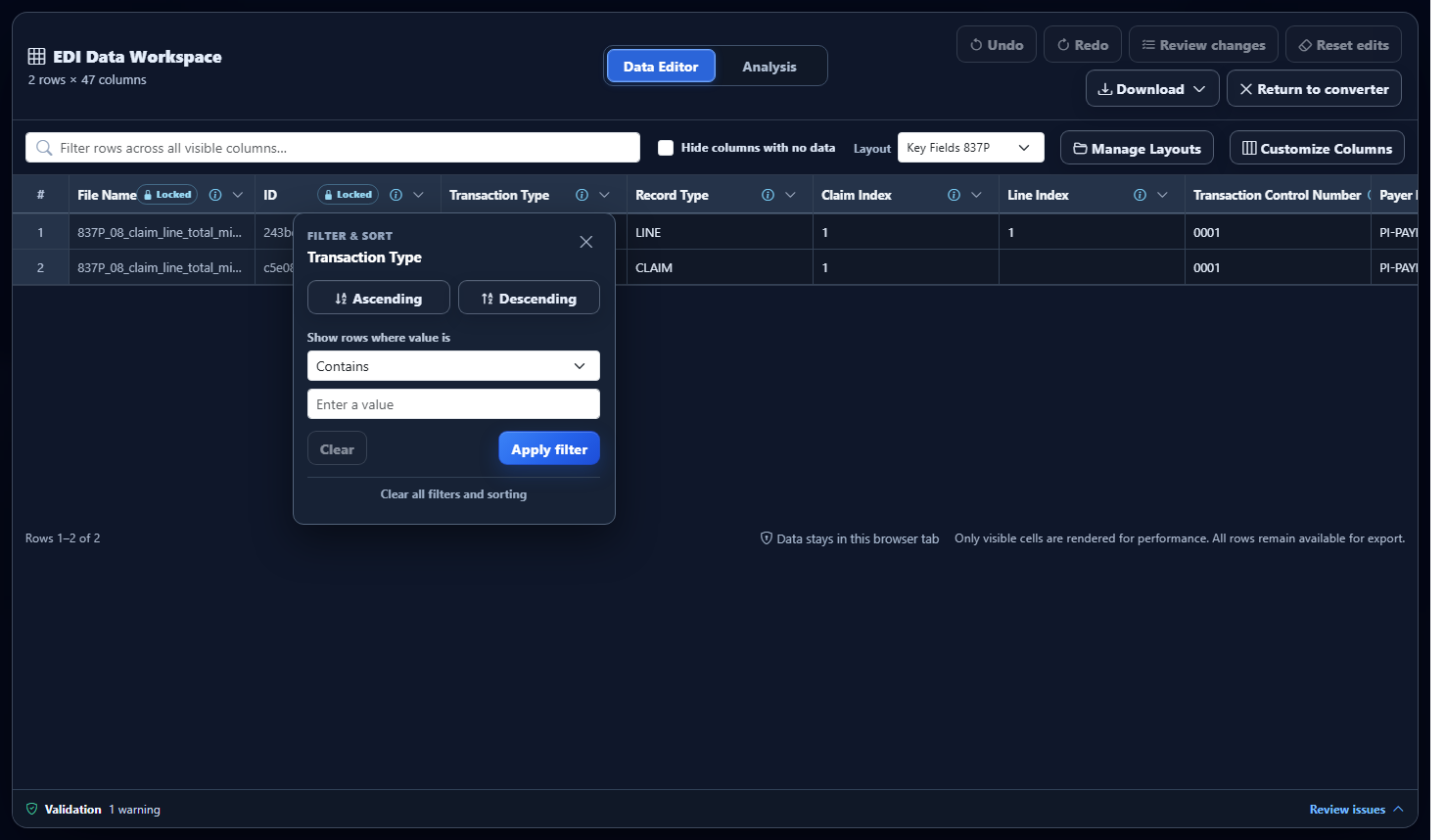
Select the arrow in a column header to open Filter & Sort. Sort ascending or descending, or choose a condition and enter the value you want to find.
Column filters use all converted rows, not only the rows currently visible on screen.
Sort the columnUse Ascending or Descending to change the viewing order.
Filter by conditionChoose Contains, Equals, or another available condition and apply the filter.
Clear one filterReopen that column menu and select Clear.
Clear everythingUse “Clear all filters and sorting” to return to the complete grid.
5
Review changes before downloading
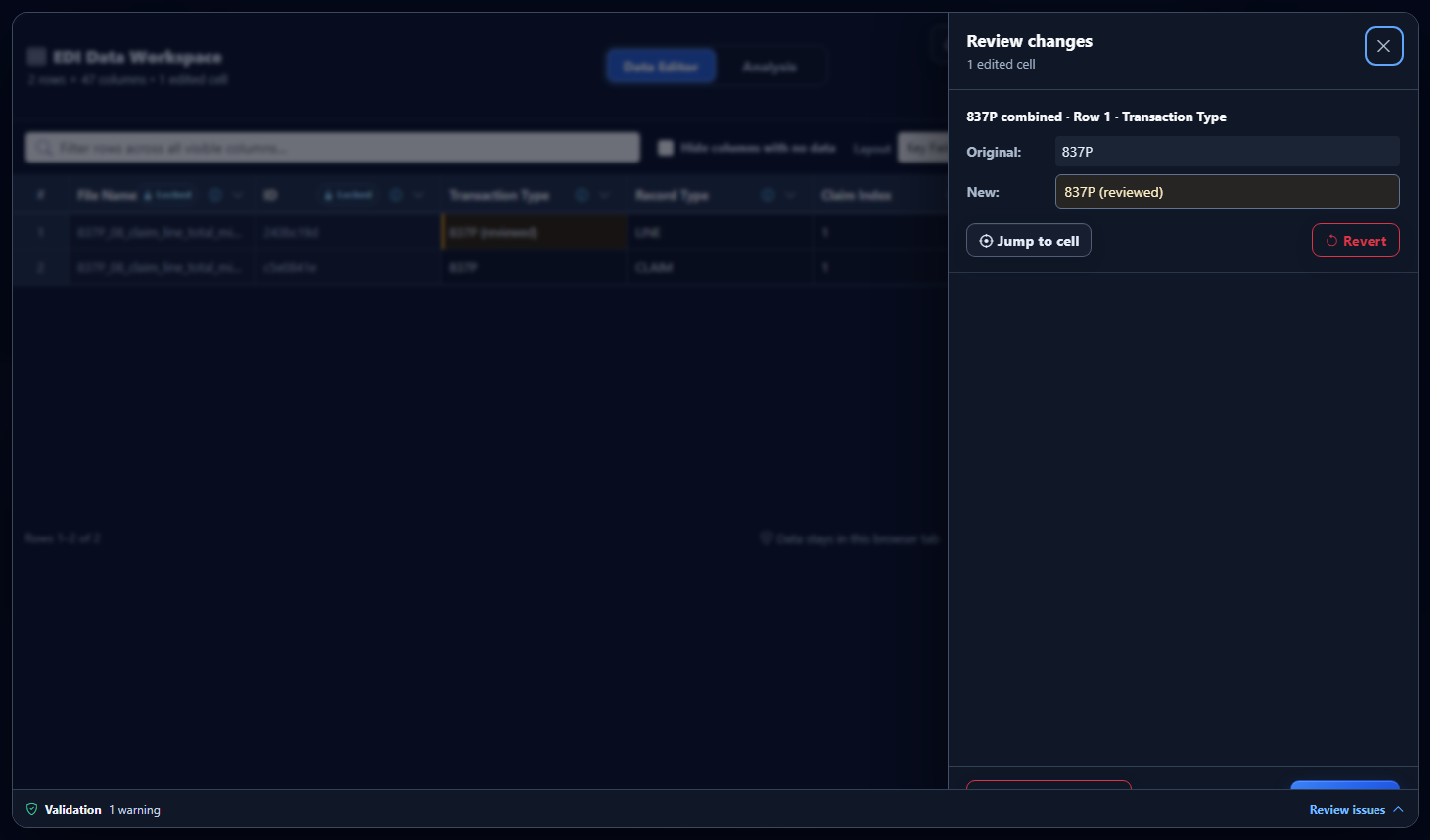
Choose Review changes to see the original and new value for every edited cell.
The review panel lets you confirm, revise, locate, or revert changes one at a time.
Edit the New value directly in the review panel.
Use Jump to cell to locate the edit in the grid.
Use Revert to undo only that change.
Use Revert all changes when you want a clean reset.
6
Check validation and download
The Validation bar remains available at the bottom of the workspace. Open it to review detected issues, then use Download to choose Excel, CSV, JSON, or XML.
Validation is advisoryReview errors and warnings in context. Validation does not automatically change your source file.
Your edits are includedThe downloaded output uses the current cell edits, active layout, visible export columns, order, and renamed headers.
Filters are for navigationSearching, sorting, and filtering help you inspect rows without reparsing the file.
Choose the format lastSelect Excel for a workbook, CSV for broad compatibility, JSON for application workflows, or XML for integrations that benefit from structured elements.
Ready to try the Data Editor?
Open the converter and follow the steps with your own 835 or 837 file.